
Runes of Magic Emulator Setup Guide – Server Files & Client
Runes of Magic is a classic PC MMORPG that still has an active community focused on older clients, private servers, and emulator projects. A Runes of Magic emulator typically includes server files, databases, configuration files, and other components that allow the game client to connect to an emulated game environment.
An emulator setup is used for server projects, testing, development, or running the game through compatibility tools on systems such as Linux, macOS, and Steam Deck. Using a compatible game client with the correct server files, database, and configuration settings is important for creating a working setup.


What Is a Runes of Magic Emulator?
A Runes of Magic emulator is a setup that lets the game client communicate with an emulated game environment. It includes different server components that handle things like login, player data, and the game world.
There are two common meanings behind the term. The first is related to running the Windows game on systems such as Linux, macOS, or Steam Deck. In that case, tools such as Wine or Proton are used to provide a Windows-compatible environment.
The second meaning is the server side. A server emulator attempts to provide the services that the game client expects when it connects to a server. This area includes login handling, game services, databases, configuration files, scripts, and communication between different server components.
Runes of Magic Emulator vs Wine and Proton
|
Feature |
Runes of Magic Server Emulator |
Wine |
Proton |
|---|---|---|---|
|
Main purpose |
Provides a server environment for the game |
Runs Windows programs on Linux |
Runs Windows games on Linux |
|
Works with |
Game client + server components |
Windows game/client |
Windows games |
|
Server required |
Yes |
No |
No |
|
Linux use |
For hosting/testing a server |
Yes |
Yes |
|
Steam Deck |
Not mainly designed for it |
Possible |
Common gaming option |
|
Handles game world |
Yes |
No |
No |
|
Handles login/server data |
Yes |
No |
No |
|
Main use |
Server projects and development |
Running Windows software |
Running Windows games |
In simple terms, Wine and Proton help you run the Runes of Magic client, while a server emulator provides the environment that the client connects to.
Runes of Magic Features
Runes of Magic has a mix of classic MMORPG systems that give players different ways to build their characters and spend time in the world of Taborea. From character classes and quests to housing, crafting, PvP, and guild activities, the game offers more than just standard combat.
Dual-Class System
One of the main features of Runes of Magic is its dual-class system. Players can choose two different classes for the same character and switch between them as they progress. This gives each character more skills and different ways to handle combat. The system also allows players to create builds based on their preferred role, whether they want stronger attacks, better support abilities, or a combination of both.

Player Housing
Runes of Magic includes a personal housing system where players can have their own private space. Houses can be furnished and decorated with different items, allowing players to create a setup that matches their preferences. Housing is not only a cosmetic feature, as it can also provide useful benefits related to character progression and gameplay.
Crafting System
The crafting system gives players another way to obtain useful equipment and consumable items. Different professions allow players to work with materials and create items such as weapons, armor, clothing, food, and potions. Gathering materials and improving crafting skills can become an important part of the game, especially for players who prefer producing their own equipment and supplies.

Rune System
Runes are an important part of character equipment in Runes of Magic. Players can use different runes to improve their gear and increase its effectiveness. This system gives players additional options when upgrading equipment and preparing their characters for harder enemies and challenging areas. Choosing suitable runes can also help players adjust their equipment to match their preferred character build.

Guild Castles
Guilds in Runes of Magic have access to their own castles, giving members a shared location for guild-related activities. Guild castles add a strong social and progression element to the game, allowing players to work together rather than focusing only on individual character development. They also give established guilds a dedicated space connected to their group activities.

PvP Arenas
Players who enjoy competitive gameplay can take part in PvP arena battles. These areas allow characters to fight against other players and test their skills outside normal PvE content. PvP provides a different type of challenge because players have to react to real opponents rather than predictable enemies. Successful PvP participation can also reward players with Honor Points that can be used within the game’s progression and reward systems.
How Runes of Magic Emulation Works
Runes of Magic emulation works by allowing the game client to communicate with an emulated server environment. The client handles the visual part of the game, while the server manages important information such as player accounts, characters, game data, and the game world.
A typical setup includes a login server, game server, database, configuration files, and other supporting components. These parts work together to provide the services required by the game client and allow it to connect to the emulated game environment.
Game Client & Emulator Connection
The Runes of Magic game client needs the correct server address and connection settings to communicate with an emulator. When the client starts, it attempts to connect to the required server services using the configured address and ports.
If the server is not running or the connection details are incorrect, the client may fail to connect or remain at the login screen. Matching the client version with the emulator is an important part of a successful setup.
Login, Game and Proxy Servers
The different server components handle different parts of the game. The login server handles the login process and checks the account connection. The game server manages the game world, characters, and player activity. A proxy server or connection service can handle communication between the client and other server components.
The exact setup depends on the emulator release. Some projects combine certain services, while others keep them as separate programs.
Database and Game Data
The database stores important information that the Runes of Magic server needs to manage the game. This can include player accounts, characters, items, settings, and other game data. The database should match the server version because using incompatible data can cause emulator errors or connection problems.
Some emulator releases include a prepared database, while others require separate installation and configuration.
Runes of Magic Emulator Requirements
Requirements depend on the type of setup you are building.
Running the original game through a compatibility layer is different from hosting a server. A Linux gaming setup has different requirements from a Windows machine being used for server development.
For a server project, RAM, storage, database software, operating system support, and the requirements of the selected release all matter.
Some older community server releases list Windows and specific SQL Server versions as part of their requirements, which shows why checking the documentation for the exact build is important.
Running Runes of Magic on Linux
Linux users normally look at compatibility tools rather than trying to replace the original game client. Wine provides a Windows compatibility layer, while Proton is another option commonly used for games. Graphics support is another part of the setup because older Windows games were built around older versions of DirectX. A working setup can depend on the Linux distribution, Wine or Proton version, graphics driver, and game configuration.
Wine and Proton Setup
Wine and Proton provide different ways to run Windows software on Linux. For Runes of Magic, the right option depends on the game client, Linux distribution, graphics hardware, and how the game is being launched. Wine works as a compatibility layer that allows Windows applications to run without installing Windows.
DirectX and DXVK
Older PC games can behave differently on modern graphics systems. DXVK translates Direct3D calls to Vulkan and is often used with Wine-based gaming setups. If graphics problems appear, the first things to check are the compatibility layer, graphics driver, DirectX translation, resolution, and game settings.
Running Runes of Magic on macOS
Mac users have a different situation because current macOS versions do not provide the same Windows compatibility environment as a Windows PC.
Wine-based solutions and virtual machines are two common approaches. The choice depends on the Mac hardware, macOS version, and the level of performance needed.
Older Intel Macs and Apple Silicon Macs can also behave differently, so a setup that works on one Mac should not automatically be treated as a universal solution.
Wine-Based Options
A Wine-based environment keeps the game inside a compatibility layer instead of installing a full Windows system. The result depends on the game version, Wine build, graphics support, and macOS version.
Virtual Machines
A virtual machine runs a Windows environment inside macOS. It uses more system resources, but it gives the game a more familiar Windows environment. For older games, a virtual machine can be useful when compatibility-layer testing becomes difficult.
Runes of Magic on Steam Deck
Steam Deck users normally approach Runes of Magic as a Windows game running through a Linux-based environment, with running the game on SteamOS requiring a compatible setup.
Proton is the main option to test first because it is designed for Windows games on Linux. Controls and display settings then need attention because Runes of Magic was designed around a traditional PC keyboard and mouse setup.
Installation Options
The exact steps depend on where the game files come from and which launcher is being used. Proton compatibility can also change between versions. Keeping the setup simple is usually better than changing several compatibility settings at once.
Controls and Resolution
The Steam Deck has built-in controls, while Runes of Magic was designed primarily for keyboard and mouse input. A suitable control layout can make a large difference, especially for menus, hotkeys, and camera movement.
Runes of Magic Emulator Performance
Performance depends on both the game and the environment in which it is running.
Modern hardware is normally far more powerful than the systems available when older PC games were released, but compatibility layers, virtual machines, drivers, and background processes can still affect performance.
Graphics Settings
Start with the game’s own graphics options. Resolution, texture quality, shadows, effects, and view distance can affect performance. Older games can also behave strangely at very high resolutions, so native display settings are not always the best choice.
FPS and Resolution
A stable frame rate is usually more useful than simply pushing the highest possible resolution. If performance drops, lower resolution and heavy graphics settings first. Then check whether the compatibility layer or driver is causing additional problems.
Low-End Hardware
Older hardware does not always mean that the game will be unusable. Runes of Magic is an older PC title, so the main challenge on a weak machine is often finding settings that keep the game stable. Lower graphics settings, a sensible resolution, and fewer background applications are a good starting point.
Reducing Lag and Stuttering
Stuttering can come from graphics settings, drivers, background applications, server connection problems, or the compatibility environment. It is useful to separate network lag from frame-rate problems. A low FPS issue is different from delayed server responses.
Runes of Magic Emulator Server Files and Database
Server files are the working parts of a server project. A release might contain server programs, configuration files, database files, scripts, and other supporting files.
Not every release contains the same package. Some are prepared for easier setup, while development releases can require more manual configuration.
Community releases show examples of server packages containing binaries, Lua scripts, databases, and other files.
Server Files Explained
Before using any server release, check its supported client version and included components. Mixing files from different builds is one of the easiest ways to create connection and startup problems.
Database Files
The database contains information that the server needs to operate. Depending on the project, database work can include importing data, checking tables, changing settings, or preparing the database for the server software.
Lua Scripts
Lua scripts are used by some Runes of Magic server projects for game logic and custom behavior. Community development resources contain Lua-related releases and discussions, showing that scripting is an active part of the emulator ecosystem.
Configuration Files
Configuration files tell the server how different components should operate. Server addresses, ports, database connections, paths, and other settings are often controlled through configuration.
Runes of Magic Emulator Problems and Solutions
Runes of Magic emulator problems are often caused by incorrect versions, configuration files, database settings, missing files, or connection issues. Finding the exact cause first makes the problem easier to fix.
Emulator Does Not Start
If the emulator closes as soon as you start it, check the configuration files, database connection, required software, and server logs.
Solution: Start the server from the console and check the error message. Make sure the required files are in the correct folders, and the database details in the configuration file are correct.
Client Cannot Connect to Server
A client that cannot connect to the server usually has a wrong server address, port, or client configuration.
Solution: Check the server IP address, required ports, and running server services. Make sure the client is configured to connect to the same server and that the required services are running.
Login Problems
Login errors can happen because of incorrect account details, database problems, server settings, or an incompatible client version.
Solution: Check the account information and database connection first. Then confirm that the client and server use compatible versions.
Graphics Errors
Black screens, crashes, wrong resolution, or missing effects can be caused by graphics drivers or compatibility settings.
Solution: Update the graphics driver and check the game’s graphics settings. On Linux or macOS, also check the Wine, Proton, or other compatibility settings being used.
Missing Files or Configuration Errors
A missing file or incorrect configuration path can stop the client or server from working.
Solution: Check that all required files are present and belong to the same release. Review the configuration paths and make sure they point to the correct folders.
Performance Problems
Low FPS and network lag are different problems. Graphics settings usually affect FPS, while connection issues are related to the network or server.
Solution: Lower graphics settings if the FPS is low. For network problems, check the connection, server response, and network settings before changing graphics options.
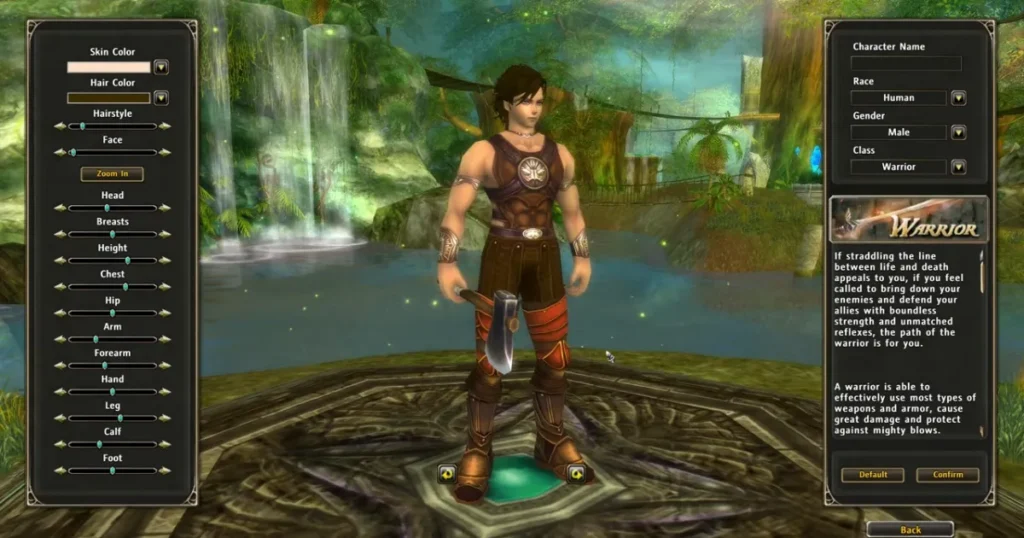
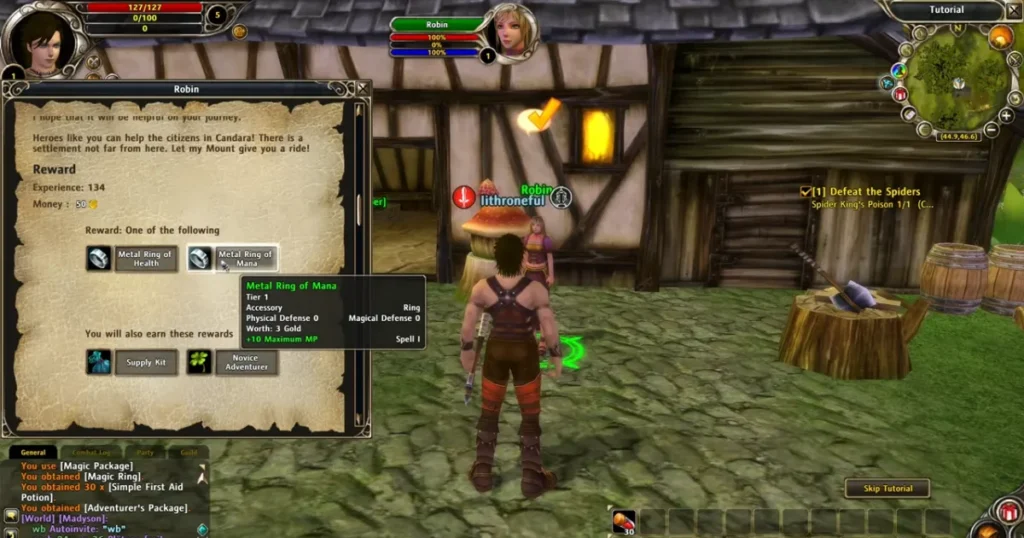
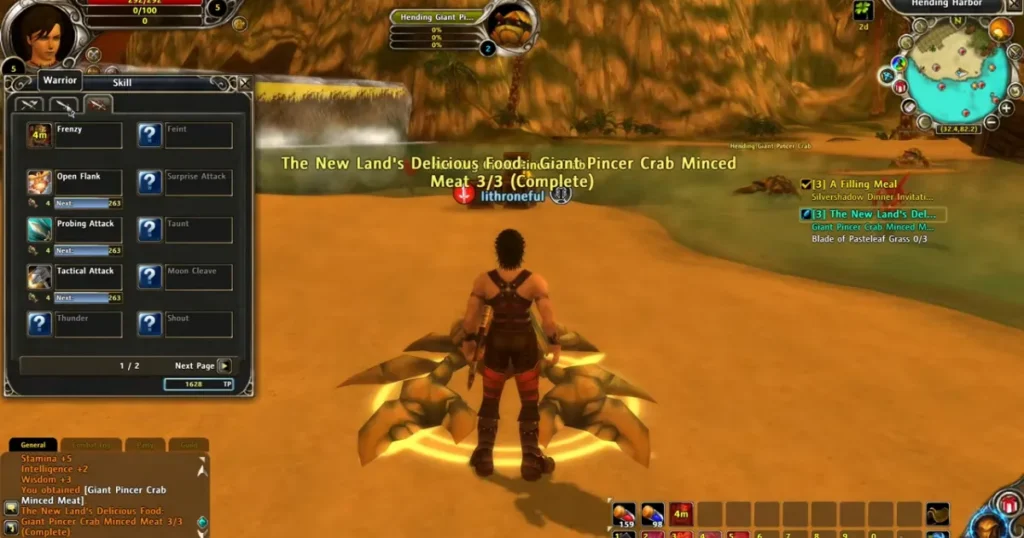
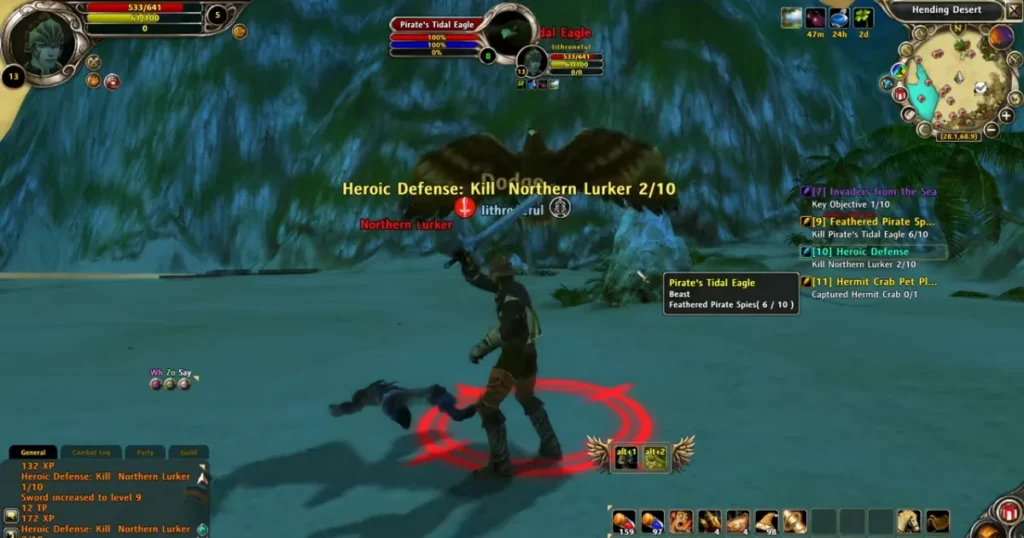
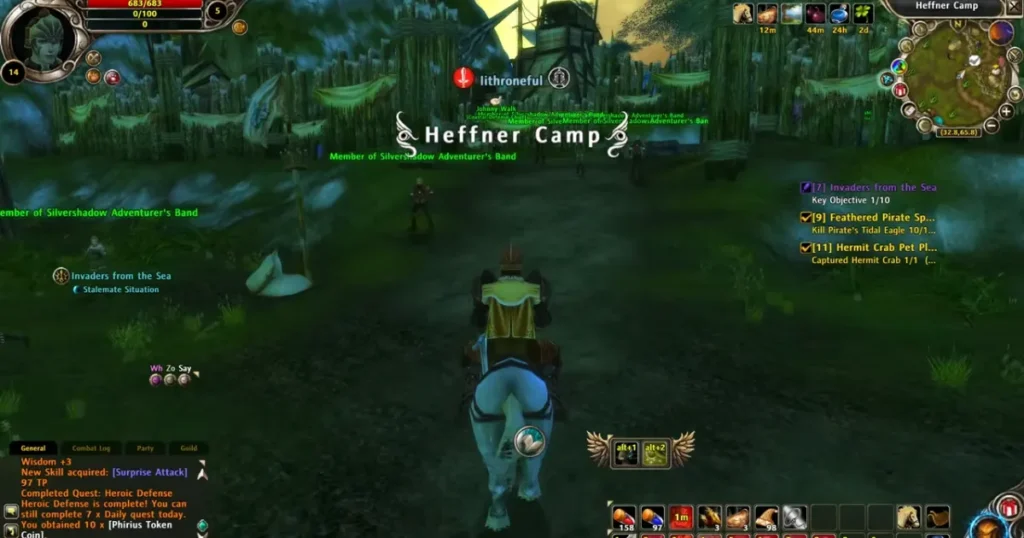
In-Game Screenshots
FAQs
Final Words
Setting up a Runes of Magic emulator involves more than just running the game client. The server files, database, configuration, client version, and required compatibility tools all need to work together.
You are testing an emulator, working with server files, or running Runes of Magic on Linux, macOS, or Steam Deck, the correct setup depends on the specific client and emulator release you are using. Checking the included documentation and keeping compatible files together can prevent many common startup and connection problems.